Imagine you just took some stunning photos on your iPhone, but now you can't open them on your computer because they are in HEIC format. Don’t worry! You can easily convert HEIC to PNG and share your memories without any hassle. In this post, I’ll show you 5 easy and free methods to make that conversion happen.
What is HEIC?
HEIC stands for High-Efficiency Image Container. It’s a format used by Apple devices to save photos. Think of it like a suitcase that packs your clothes tightly without wrinkling them. HEIC keeps your images small without losing quality. But not all devices can read this format yet, which can make sharing tricky.
Why Convert HEIC to PNG?
PNG is a more universally accepted format. It’s like changing your suitcase to a standard bag everyone can carry. PNG files keep image quality and support transparent backgrounds. This makes it easier to share your photos across different devices and platforms. Plus, you can edit them without issues.
Method 1: Use an Online Converter
The easiest way to convert HEIC files to PNG is through an online converter. Websites like heic.me let you upload your HEIC files and convert them to PNG in seconds. No downloads or sign-ups are needed. Just drag, drop, and your new PNG files will be ready!
Method 2: Use Your Mac
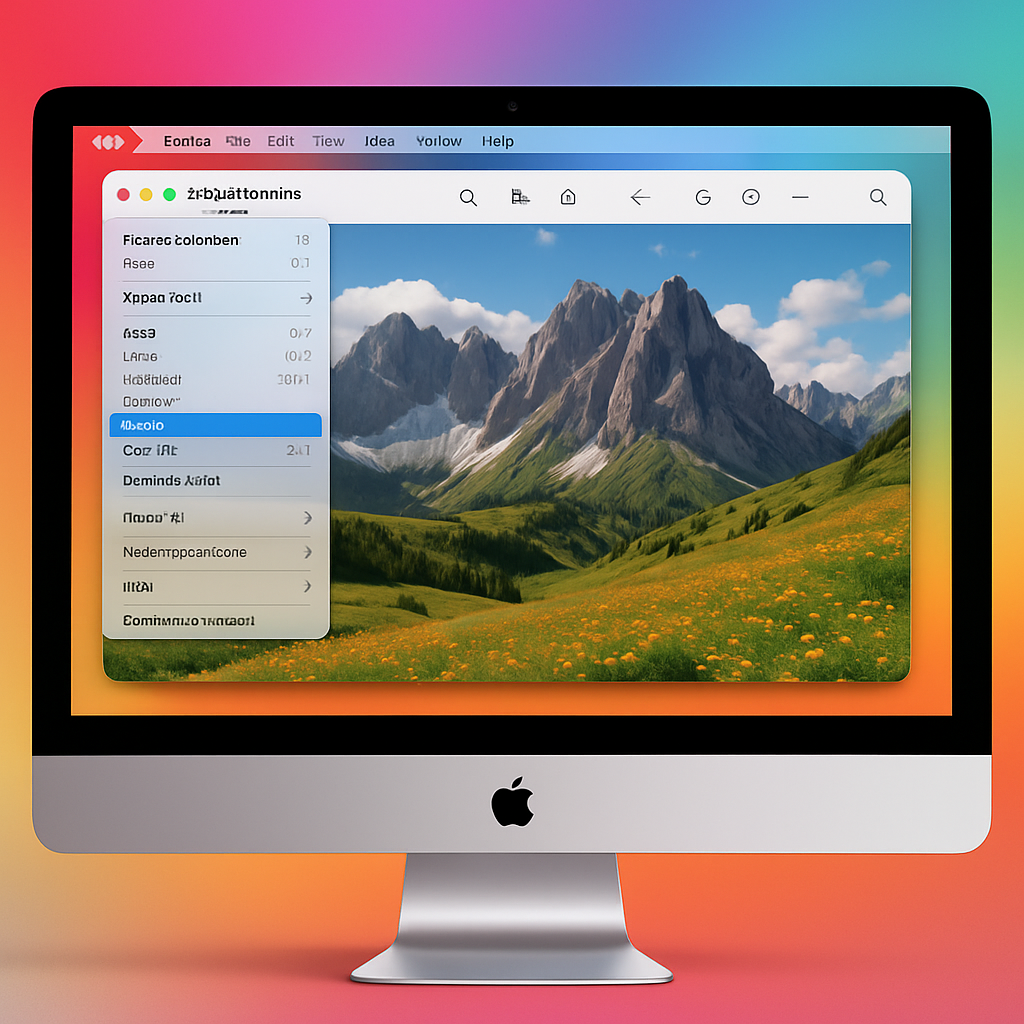
If you own a Mac, you can convert HEIC files using the Preview app. Simply follow these steps:
Open your HEIC file in Preview.
Click on 'File' and choose 'Export.'
Select PNG from the format options and hit 'Save.'
It's quick and keeps your images looking great!
Method 3: Use Windows 10 or 11
If you are using Windows 10 or 11, you can convert HEIC files using the Photos app. Here’s how:
Open the HEIC file in the Photos app.
Click on the three dots in the upper right corner.
Select 'Save As' and choose PNG as the format.
It’s as simple as that! Your photo will be saved in the PNG format.
Method 4: Use an App on iPhone
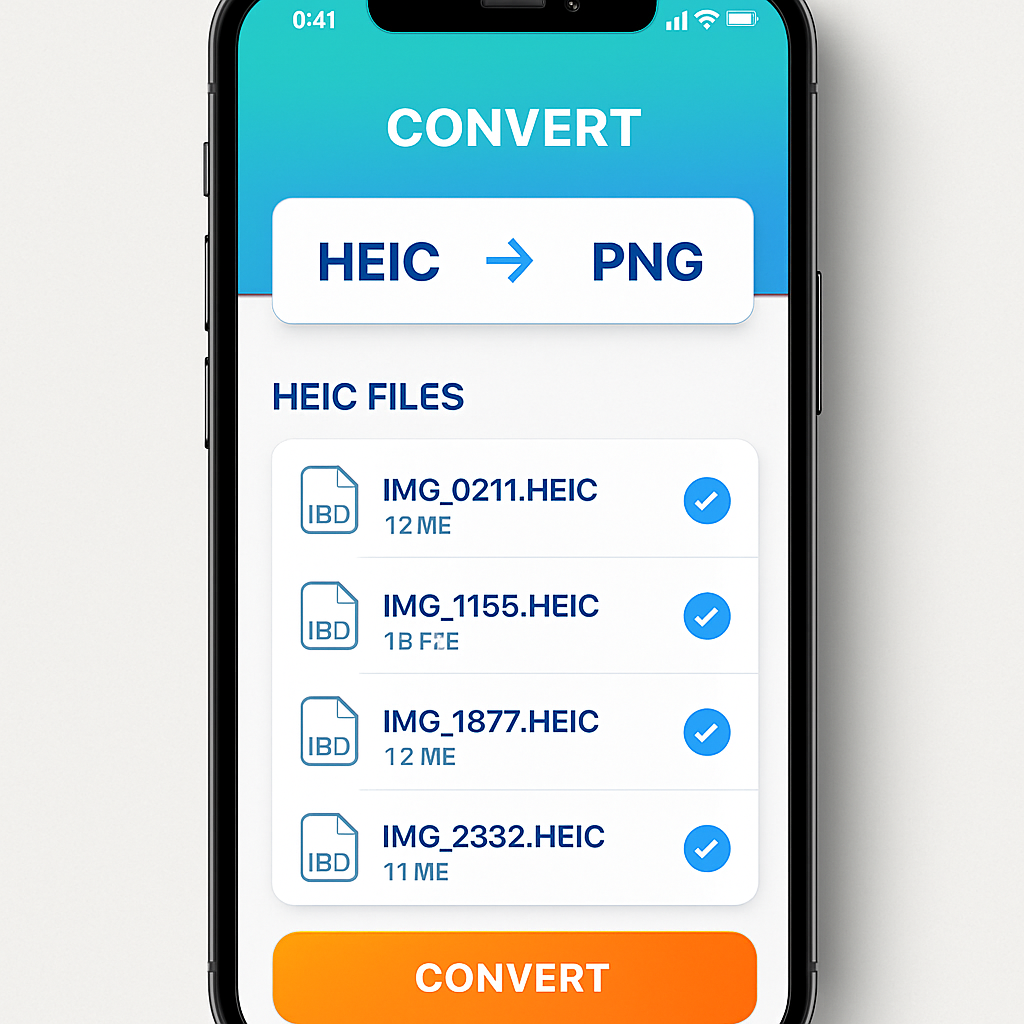
If you want to convert HEIC to PNG on your iPhone, there are several apps available in the App Store. Some popular ones include HEIC to JPEG and Image Converter. Here’s a quick guide:
Download and open the app.
Select the HEIC files you want to convert.
Choose PNG as the output format and tap 'Convert.'
Now you can easily share your photos with anyone!
Method 5: Use File Conversion Software
Lastly, you can use file conversion software like IrfanView or GIMP on your computer. These programs can handle HEIC to PNG conversions easily. Here’s how:
Install the software and open it.
Load your HEIC file into the program.
Select 'Save As' and choose PNG.
This method is great if you need to convert multiple files at once.
Frequently Asked Questions
Can I convert HEIC to PNG on my phone?
Yes! You can use various apps available on the App Store to convert HEIC files to PNG directly on your iPhone.
Is there a quality loss when converting HEIC to PNG?
No, PNG is a lossless format, so your images will maintain their quality during the conversion process.
Are there any free tools to convert HEIC to PNG?
Absolutely! You can use online tools like heic.me to convert HEIC to PNG for free without any sign-up or download.
Can I convert multiple HEIC files at once?
Yes, many online converters allow you to batch convert HEIC files to PNG, saving you time and effort.
Why do some devices not support HEIC?
HEIC is a newer format, and not all devices or software have caught up yet. This is why converting to a more common format like PNG can help.

Conclusion
Converting HEIC to PNG is easy and can be done using several free methods. Whether you prefer online tools, using your devices, or apps, there’s a way for everyone. Try out the free tool at heic.me to convert your images quickly and without any hassle. No installs, no sign-up — just drag, drop, and done!